 Skip to content

A corporate event livestream succeeds or fails before the first camera rolls. The practical tool is a timed run of show that gives the program team, venue, AV crew, video crew, platform owner, and remote-audience moderator the same version of the plan. It should name what happens, what the audience sees, who calls the cue, and what changes if a critical path fails.
This guide is for event managers and internal marketing teams commissioning a livestream or hybrid event. It is not a substitute for a venue walkthrough, network test, or production call. Those details change by room, program, platform license, accessibility needs, crew, and available backup paths.
What a corporate livestream run of show actually does
A run of show is the live operating document: a timed sequence of program moments and production cues. A useful version is more than a speaker agenda. It pairs each moment with the relevant camera, audio, slides or playback, stream action, audience experience, and a named owner. The purpose is not to predict every second. It is to make the next decision obvious when the plan changes.
For a hybrid event, include the remote audience as its own column or cue. A transition that looks smooth in the room can be confusing online if the stream is late, a slide is not visible, captions are missing, or attendees do not know where to ask for help. Treat the remote experience as a production output, not as a link sent after the room setup is complete.
Keep the livestream run of show separate from the video brief
A corporate event video brief explains the business purpose, audience, must-capture moments, restrictions, deliverables, and approval path. It gives a production partner the context needed to scope the work. A livestream run of show is narrower and more operational: it turns that context into a live sequence of cues and owners.
Both documents should agree, but they should not become one unreadable file. Keep the strategic requirements in a corporate event video brief; link the current program, floor plan, slide deck, speaker details, and access instructions from the run of show. That separation keeps the show-day document scannable while preserving the decisions that affect scope, quote, and post-event delivery.
Make six decisions before anyone fills in times
Start the first production meeting with decisions, not equipment names. The answers tell the team what the run of show needs to control.
- Audience and access: Who is allowed to watch, and what should attendees be able to do—watch, chat, ask questions, turn on a camera, or join a discussion?
- Program promise: Which moments must be live, which can be playback, and which transitions are too important to leave to a verbal handoff?
- Room and venue facts: What are the confirmed load-in window, room layout, presentation outputs, audio handoff, camera positions, power, network process, and venue contacts?
- Ownership: Who has authority to start, pause, skip, shorten, approve a change, speak to the audience, or choose the fallback?
- Record and reuse plan: What must be recorded, who needs access, which moments are candidates for clips, and what approvals are needed before distribution?
- Failure threshold: What is the agreed response if a speaker is late, a slide changes, an audio source fails, a connection degrades, or the platform behaves differently than expected?
Write down unknowns instead of filling them with assumptions. For example, do not put a bandwidth number in a run of show just because it appeared in a generic checklist. The venue and production team should test and document the actual path, including any backup option that is genuinely available.
Bring the current program agenda, speaker list, floor plan, presentation format, venue contacts, accessibility requirements, and post-event goals to that meeting. Ask each owner which decision would force a change to the schedule, crew, access, recording, or audience message. That question reveals the decisions that deserve a cue-sheet row and separates a genuine production requirement from an unverified preference.
Build a cue sheet that production and program teams can both use
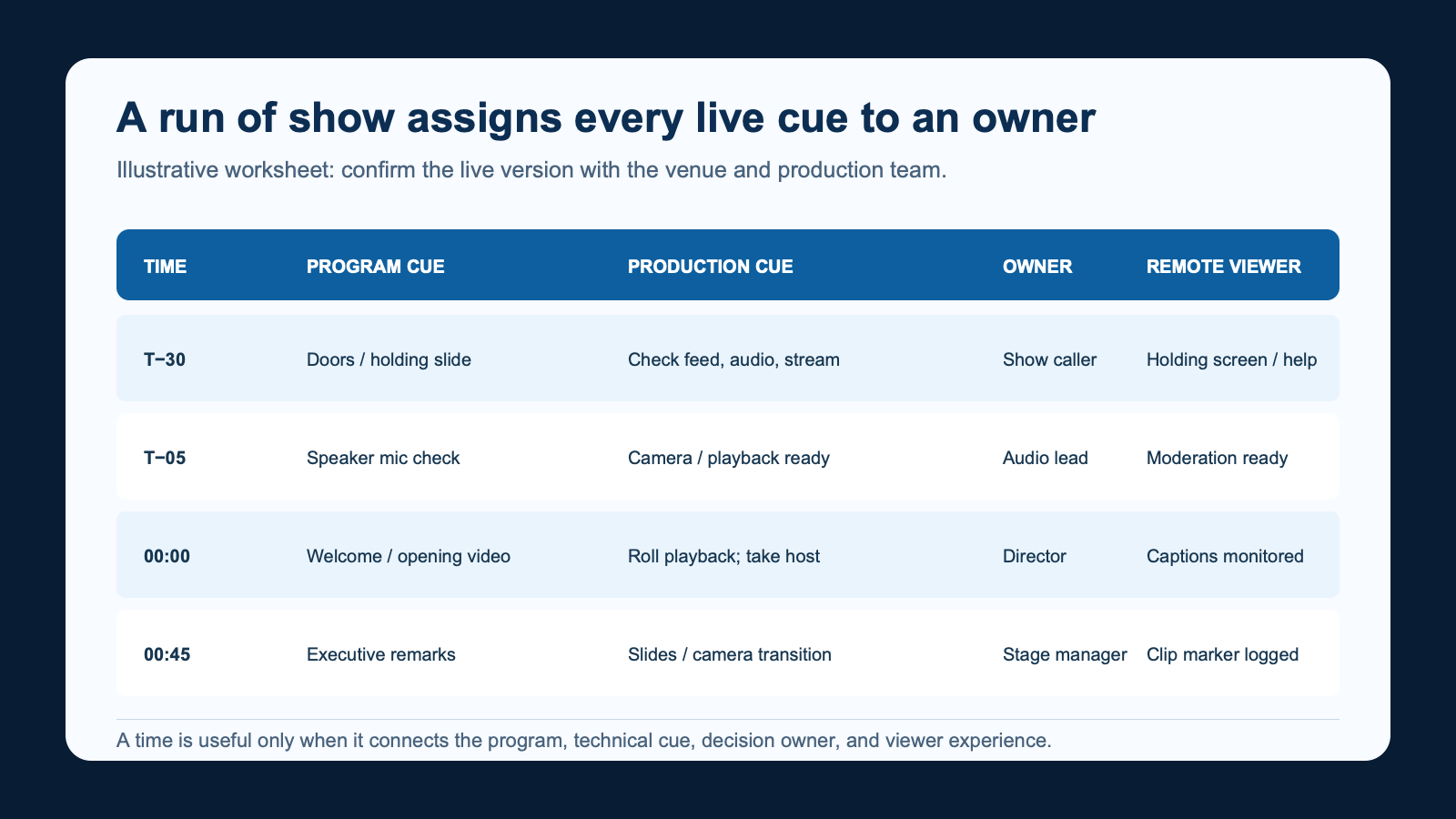
Use one row for each meaningful change: doors, holding content, walk-on, opening playback, welcome, executive remarks, Q&A, panel transitions, breaks, awards, closing, and end-of-stream. A fast event can have many rows; a simple town hall may have fewer. The right detail level is whatever lets the operator, stage manager, and presenter see the same next step without debating the document during the show.
| Time | Program moment | Production cue | Owner | Remote-viewer cue | Fallback |
|---|---|---|---|---|---|
| T−30 | Doors / holding | Confirm program feed, mic status, stream health | Show caller | Waiting screen and help route | Hold slide; escalate to production lead |
| T−05 | Speaker ready | Mic, camera, playback, slide check | Audio or stage lead | Moderator confirms chat and Q&A | Use host bridge or adjust order |
| 00:00 | Welcome | Roll playback; take host camera | Director | Captions and support monitored | Host acknowledgment and holding cue |
| 00:45 | Executive remarks | Camera and slide transition | Stage manager | Record marker for clip team | Go to approved alternate transition |
| 01:15 | Q&A / close | Bring moderator and closing graphic | Moderator | Explain next action and recording plan | Close Q&A; use prepared closing |
A row should never hide decision authority. “Check audio” is not a usable cue unless it says who listens, how they report an issue, and who may decide whether the program pauses. The same rule applies to slides, speaker readiness, captions, stream destinations, and recorded content.
Add a readiness marker for decisions that must be closed before the next cue: confirmed, needs a decision, or not available. A small status note is safer than an optimistic checkmark. It also gives the producer a way to resolve an issue during rehearsal without rewriting the show-day document from scratch. If the schedule shifts, update the current version and tell every owner which version is controlling.
Choose the remote audience format before the production plan hardens
Platform choice changes the roles and rehearsal plan. The question is not which platform is “best”; it is what participation, access, moderation, recording, and support model the event needs. Confirm the organization’s current license, policy, attendee rules, and feature availability directly with the platform owner before making a promise to attendees.
- Zoom Events and Zoom Webinars: a useful example when a host needs a controlled presentation environment. Zoom distinguishes webinar sessions, where the host controls the attendee experience, from meeting sessions, where attendee audio and video can be enabled. Choose it when that control matches the program; skip it when the main value is free-form participant discussion.
- Microsoft Teams Town Hall: a relevant one-to-many option for organizations already working in Microsoft 365. The event owner should confirm current policies, who can schedule, and who may attend. Choose it when the tenant, audience policy, and internal ownership are already in place; skip it when the event needs a different registration or participation model.
- Blackmagic ATEM Mini Pro ISO: an example of why a multi-source program feed and isolated-recording decision belongs in the production plan. Blackmagic lists four HDMI inputs, direct streaming support, and ISO recording capabilities for this model. Choose it only when a production team needs and can support that workflow; skip it for a simple platform-native presentation that does not need live switching.
Tool and relationship note: Nitro has no affiliate links in this guide. Zoom, Teams, and ATEM references are official planning examples, not endorsements, live price claims, or a substitute for production testing.
Build rehearsal time into the plan. Zoom documents that a webinar practice session can be opened before the attendee broadcast begins, which is a useful reminder that the people with cue responsibility need a controlled chance to verify roles and transitions. The rehearsal should also cover what attendees see before the show, how a moderator escalates a question, and how the team communicates a change without narrating an internal problem to the audience.
Ask the platform owner to confirm the attendee link, registration path, host and co-host access, moderation permissions, recording destination, captioning plan, support contact, and what a remote viewer sees if the event starts late. Those answers do not belong only in an email thread. Put the decision, owner, and relevant link beside the show cue so the live team can use it.
Test the production path, not just individual tools
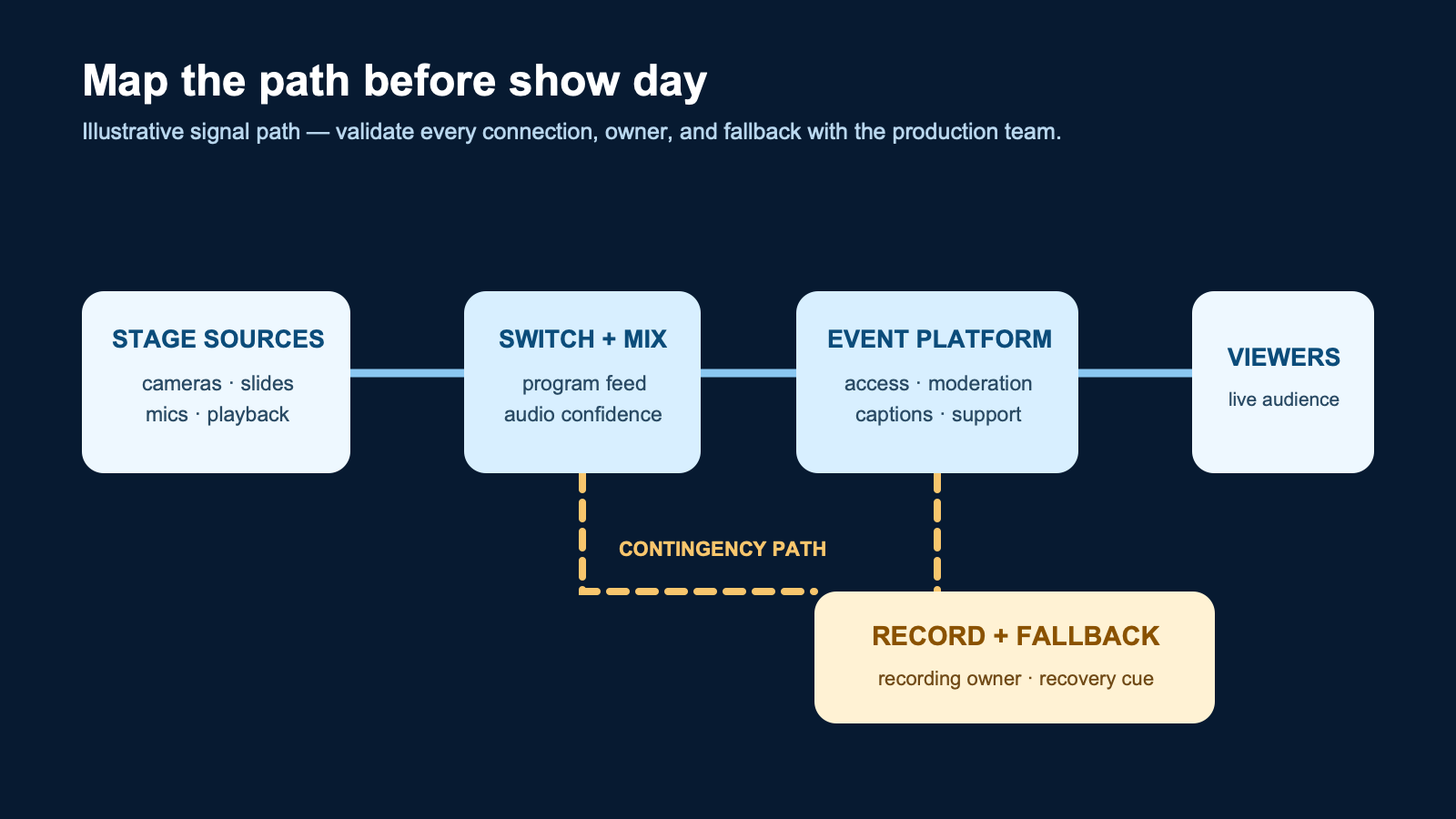
“The camera works” and “the platform works” are not enough. Test the full path that matters to the audience: source, audio, slide or playback handoff, switching or program output, stream destination, remote monitoring, recording, and support. Give every test a result, owner, and follow-up. A useful rehearsal log can mark a path as confirmed, needs change, or unavailable rather than pretending every backup exists.
Test the exact changeovers that the program will ask for. A polished opening can still fail when the show switches from a walk-on to a video, moves from a panel to remote Q&A, or hands a slide deck between presenters. Check the monitoring position too: the person who is responsible for audience support must be able to see the state that matters, not only hear that another part of the room is working. If a fallback is not tested or not actually available, label it as an escalation decision instead of calling it redundant.
Then rehearse the human handoffs. Who tells the speaker to wait? Who authorizes a slide change? Who tells remote attendees that a session will start late? Who knows whether a clip may be published? Those answers belong beside the technical cues because the live show is a coordination problem as much as a signal problem.
Use the run of show to protect post-event content
Recording is only the beginning. Before show day, decide whether the output is a full event recording, a set of session cuts, short highlight clips, internal reference footage, or some combination. Identify the approval owner, review deadline, speaker permissions, captioning need, delivery location, and names of the pages or teams that will use the work. That keeps a valuable recording from becoming an unfindable file with no approved next step.
Include a naming and access rule. The person exporting the master recording should know where the file goes, who may download it, and who owns the edit request. The person approving clips should know whether a speaker, brand, or legal review is required. These are not post-production chores to discover after the event; they affect the capture, recording, and release choices made before the first session begins.
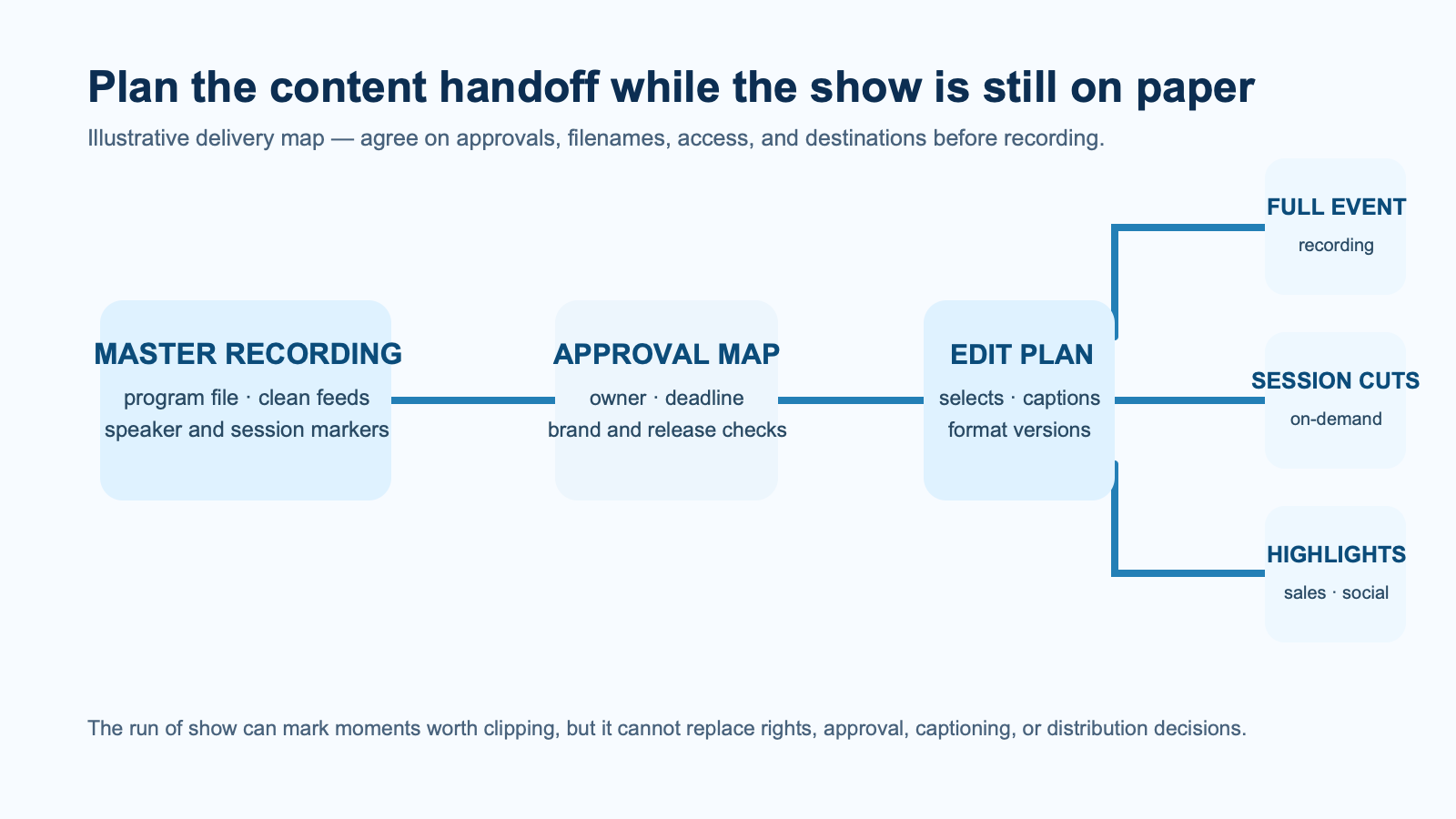
Mark clip-worthy moments in the run of show: opening statements, product reveals, panel questions, awards, customer stories, and closing actions. A marker is not an approval. It simply helps the post-event team find material and ask the right person for a decision. For more context on live production choices, see Nitro’s live-streaming event guide and multi-camera production guide.
Corporate event livestream run of show checklist
- One current document link, version owner, and distribution rule
- Timed program rows with stage, video, audio, playback, stream, and remote-viewer cues
- Named decision owner and fallback for every important transition
- Confirmed venue, access, presentation, power, and network testing process
- Audience access, moderation, captions, help route, and registration owner
- Rehearsal plan that tests the complete path and the human handoffs
- Recording, approval, captioning, delivery, and post-event reuse decisions
Bring a scoped plan to the production conversation
A strong run of show does not replace a production partner. It makes the first conversation more useful because the team can identify what is known, what needs a venue answer, and where a backup decision is real rather than assumed. If your event has multiple sources, a remote audience, or a meaningful post-event content plan, start with the program, owners, constraints, and desired viewer experience—not a generic gear list.
When you are ready to turn that plan into a production scope, talk with Nitro Media Group about the event, the audience, and the outcomes the recording needs to support.


